
LTO MV File Number Not Found: What to Do Latest Update 2026
If you’re checking your LTO MV File Number online and getting a “Not Found” message, don’t worry — this is a common issue. Many vehicle owners in the Philippines face it when trying to track plates or driver’s licenses online.
Your MV File Number is a 15-digit number on your Certificate of Registration (CR). It helps the LTO system identify your vehicle and update its status. Sometimes, the tracker may not show your record even though everything is correct. Here’s why this happens and what you can do.
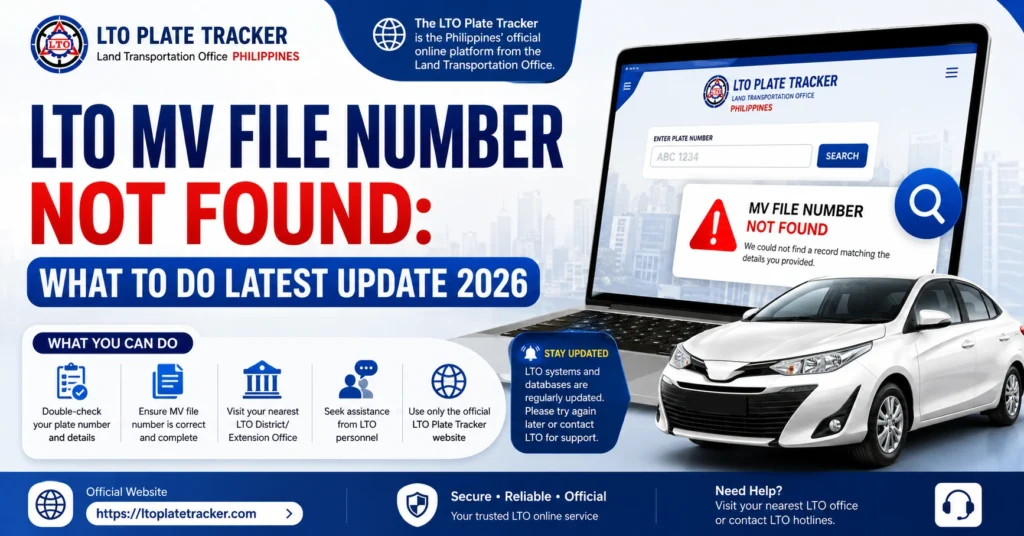
Why Your MV File Number Might Not Be Found
Here are the most common reasons:
Incorrect Number Entered
Even a single digit or character mistake can cause the system to return “Not Found.” Always double-check your MV File Number from the CR.
Newly Processed Vehicle or Plate
If your registration or plate has just been processed, it may take some time before the system updates.
System Maintenance or Updates
The LTO tracker may be temporarily offline for maintenance or system upgrades.
Regional Update Delays
Not all LTO branches update online records at the same time. Your MV File Number may exist in the system locally, but the online tracker hasn’t received it yet.
Browser Cache or Cookies Issues
Old cache and cookies can cause the page to display outdated information.
You can also read: LTO Plate Delivery No Tracking Number: Fixes Update (2026)
Steps to Fix “MV File Number Not Found”
Here’s how to troubleshoot and resolve the issue:
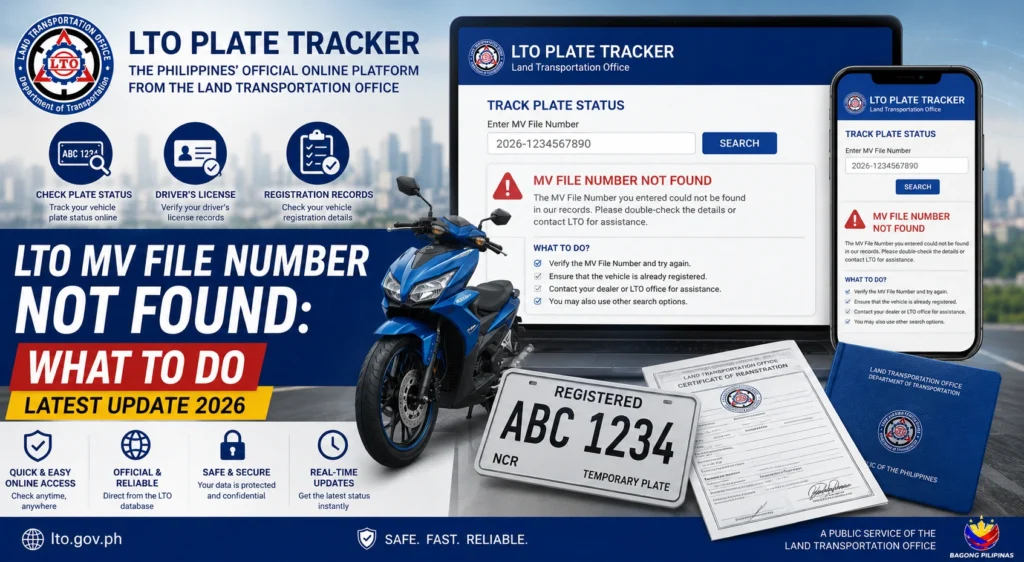
Check Your Number Carefully
Make sure your 15-digit MV File Number is correct. Copy it directly from your OR/CR and avoid any extra spaces or characters.
Refresh or Switch Browsers
Clear your browser cache or try a different browser. Chrome or Firefox often works best for the LTO tracker.
Try the eGovPH App
If the LTO website isn’t showing your record, check your MV File Number using the eGovPH app. It usually reflects updates faster than the website.
Wait a Few Days
If your vehicle registration or plate was just processed, the online tracker may take 1–3 business days to update.
Contact Your LTO Branch
If you’ve tried everything and still get “Not Found,” visit your LTO branch. Bring your OR/CR and valid ID. Staff can verify your MV File Number manually.
Tips to Avoid MV File Number Errors
FAQs
Conclusion
Getting a “Not Found” message for your MV File Number can be frustrating, but most of the time it’s temporary. By carefully entering your number, checking the tracker at the right time, and contacting your LTO branch if needed, you can quickly resolve the issue.
Patience and double-checking your details usually solve the problem, ensuring your plate or registration is found and updated correctly.


